The Emote List Manager
The Emote List Manager is where you add channel-specific emote sources, edit or delete existing ones, and refresh codes when something looks stale. Open it via Emotes → Emote Manager.
The main grid
The dialog shows a grid of every loaded source:
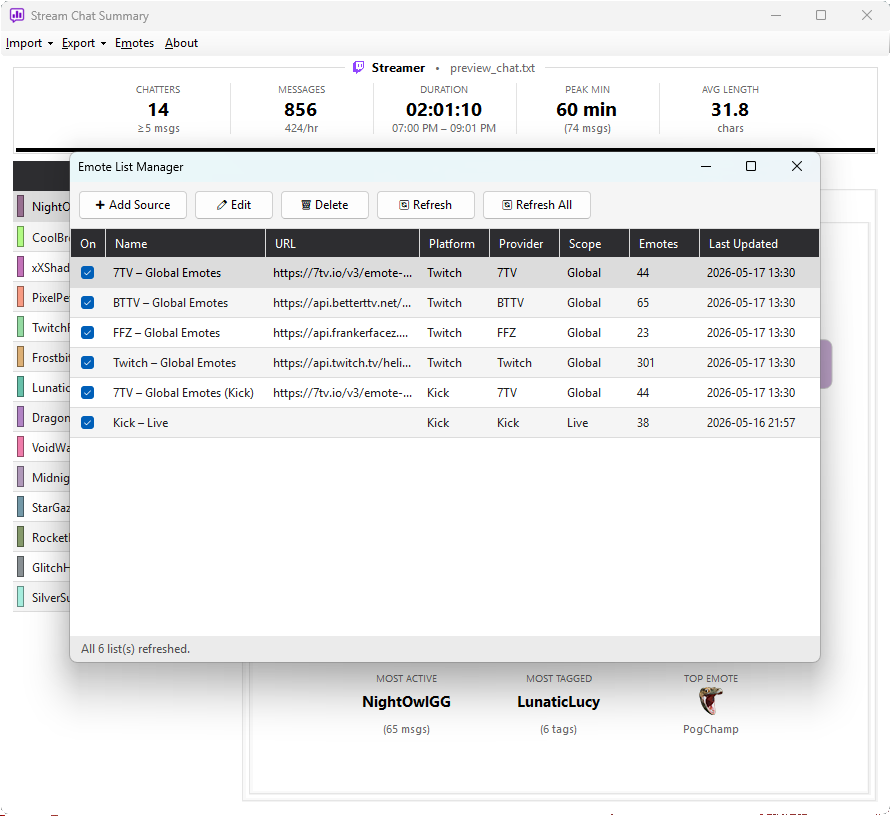
| Column | Description |
|---|---|
| On | Checkbox — uncheck to skip a source without deleting it |
| Name | A label — e.g. "Twitch - Global Emotes", "BTTV - streamer_name" |
| URL | The endpoint the app fetches from |
| Platform | Twitch or Kick |
| Provider | Twitch, BTTV, 7TV, FFZ, or Kick |
| Scope | Global or the streamer name for channel-specific sources |
| Emotes | Number of emotes loaded from this source |
| Last Updated | When this source was last fetched |
On a fresh install the grid contains just the five default global sources. Every channel-specific row is something you (or a previous Add Source action) have added.
Actions
➕ Add Source
Click Add Source to add a new emote list. The dialog asks for:
- Provider — Twitch, BTTV, 7TV, or FFZ (Kick channel emotes are not added through this dialog — they're discovered inline during live capture sessions)
- Platform — Twitch or Kick (7TV and FFZ work on both)
- Channel name — required for Twitch, BTTV and 7TV; FFZ and Twitch global sources don't need one
- Name — auto-suggested from provider + channel, but editable
The URL is constructed automatically from the provider and channel name. Click OK and the source is added and fetched immediately.
✏ Edit
Select a row and click Edit to change its name, channel, or other fields without deleting and re-adding. Useful if you mistyped a channel name or want to rename a list for clarity.
🔄 Refresh
Pick one or more rows and click Refresh to re-fetch just those sources from the provider. Useful when one streamer added new tier emotes but you don't want to re-pull everything.
🗑 Delete
Select a row and click Delete to remove the source. The saved copy is removed from the emote cache folder too.
Auto-discovered Live lists (the ones built from inline emotes during Twitch and Kick capture sessions) can't be added to, edited, or refreshed, but they can be deleted — handy for clearing accumulated emotes. The next live session simply re-creates the list as new emotes appear.
🔄 Refresh All
Re-fetches every loaded source in parallel. The fastest way to make sure every cache is current.
When to refresh
A few times you'll want to manually refresh:
- Emote codes showing as text in messages or charts — the relevant source either isn't loaded (use Add Source) or is stale (use Refresh Selected)
- A streamer added new emotes since you last loaded their channel source
- You've upgraded and want to be sure everything is current
For most users, refreshing once a week or before an important analysis session is plenty. Global sources change rarely; channel sources change whenever a streamer updates their collection.
How fetched emotes are used
Once you close the Emote Manager (with OK), every loaded source is combined into a single set of recognised codes. From that point onwards:
- Messages render emotes inline in every grid
- The Emote Usage chart shows images instead of text
- The emote-only category picks up the new codes
If a source fails to load (network error, channel doesn't exist on that provider, etc.) it's silently skipped — the rest of the manager still works fine. Check the error log for details.
If you regularly analyse the same set of streamers, add their channel sources once via Add Source. They stay loaded across app restarts, and Refresh All will keep them all current with a single click.
Where the cache lives
%LocalAppData%\Stream Chat Summary\emotes\
Each source is one small JSON file. Deleting a file here is the same as removing the source via the dialog — on next launch, only the five default global sets will be re-seeded.