Replaying a log
Replay lets you scrub through an imported chat log as if it were playing live — messages arrive at their original cadence, charts update over time, and you can pause, speed up, or jump to any point.
It's useful for:
- Reviewing the build-up to a highlight rather than just the peak
- Demoing how the app behaves on a long stream without re-doing the analysis
- Watching what a specific chatter said in context, in order, around an event
Opening the replay window
Menu: Import → Replay Log
A second window opens alongside the main window. The main window keeps showing the full analysis; the replay window shows messages as they would have arrived live.
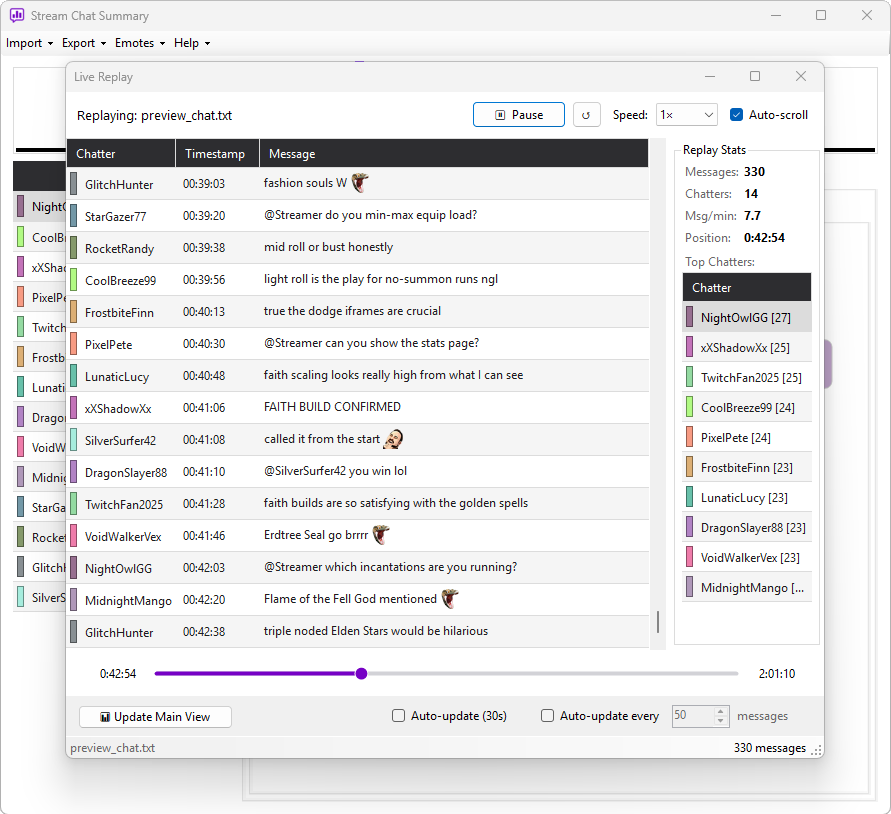
Controls
The replay window has a transport bar at the bottom:
| Control | Effect |
|---|---|
| Play / Pause | Start or pause playback |
| Speed | 0.5×, 1×, 2×, 5×, 10× — how fast time advances |
| Scrub bar | Drag to jump to any point in the log |
| Update Main View | Push the current snapshot back to the main window so charts and stats reflect playback position |
| Reset | Jump back to the start so you can play through again |
When playback reaches the end of the log, the Play button stops and an end-of-log marker appears in the messages grid. Playback does not wrap back to the beginning automatically — click Reset to start a fresh run.
What's in the replay window
- Messages grid — messages stream in at the current playback speed, scrolling automatically (the grid keeps the most recent 5,000 messages on screen)
- Top chatters — updates in real time, showing the leaderboard at the current playback position
- Events — sub/raid/follow markers appear as they would have during the broadcast (the grid keeps the most recent 2,000 events on screen)
The on-screen row limits are a display optimisation only — they never affect the stats, the seek bar, or what gets sent to the main view, which always works from the full log.
Conversation view
Click any username in the messages grid to open a conversation thread for that chatter. The thread shows every message the chatter sent and every message that @mentioned them, drawn from the full emitted history. Messages that only mention other people are excluded. The most recent 200 thread messages are kept on screen. Emotes and emoji render inline, exactly as in the main message grid.
The window tracks the seek bar while it is open: as playback advances, or you scrub forward or backward, the thread rebuilds to match the messages played back up to the current position.
See Conversation view for the full details.
Auto-updating the main view
If you turn on auto-update in the replay window, a snapshot of messages-so-far is pushed to the main window on a timer (e.g. every 30 seconds). The main window's charts, highlights, and stats recompute against just the messages that have "arrived" — so you can watch engagement tiers shift as more chatters join in.
Why replay matters
A static analysis tells you what happened. Replay shows you how it happened — the gradual warm-up before a hype moment, the way a quiet stream slowly built momentum, or the wave of subs that hit right after a big play.
10× speed turns a four-hour stream into a 24-minute fast-forward. Pair it with auto-update-main-view and you get the analysis evolving live on top of the messages — great for screen recordings and pitch decks.
Replay doesn't modify anything
Closing the replay window has no effect on the loaded log. You can replay as many times as you like; each session is independent and the original analysis stays intact in the main window.