Importing a CSV file (TC Downloader)
The CSV importer reads chat logs exported by Twitch Chat Downloader (TCD) and any other tool that produces the same four-column shape.
How to import
- Click Import → CSV File (TC Downloader)
- Browse to the
.csvfile - Fill in the Channel name (optional — enables channel-specific emote matching and Streamer Tag detection). The field remembers channels you've imported before: open the drop-down to pick a previous one, or type a new name. Click the ✕ beside a remembered name to drop it from the list.
- Pick the Platform — Twitch or Kick
- Click Import
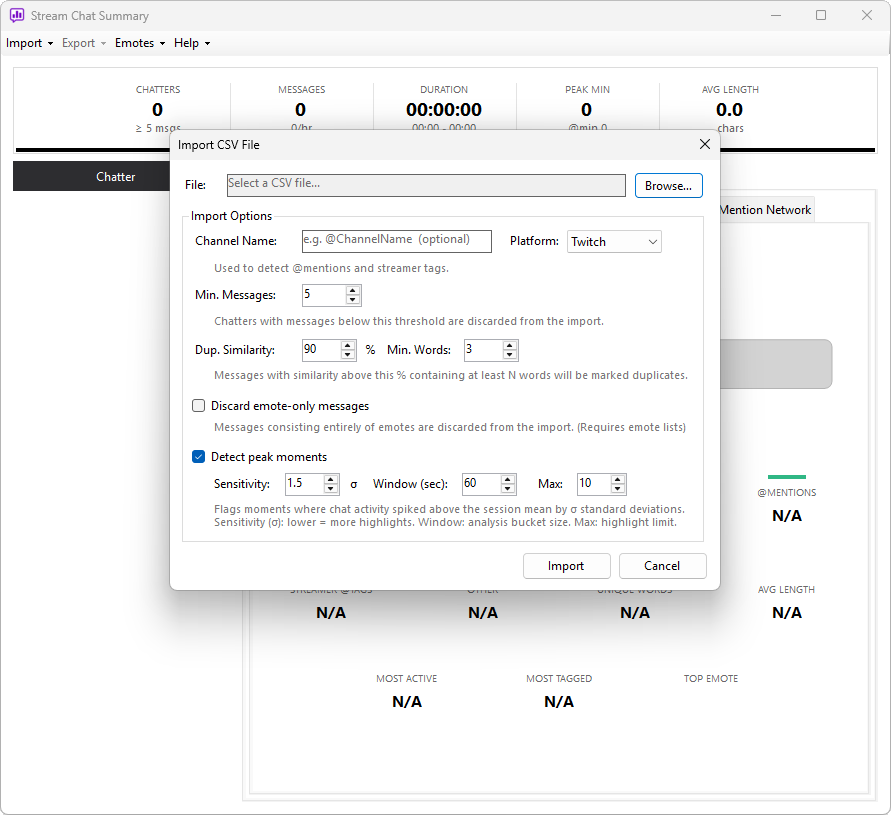
There's no timestamp format dropdown — CSVs use offset seconds, so the conversion to clock times is automatic.
Expected format
CSV files must have four columns in this order:
offset_seconds,username,user_color,message
The first row must be a header. Example:
offset_seconds,username,user_color,message
3,streamer_user,#9146FF,starting in a sec!
12,viewer123,#FF7F50,LETS GO
27,another_viewer,,gg
54,viewer123,#FF7F50,clutch!
182,new_chatter,,first time here
A few things to know:
offset_secondsis the time since stream start, not a wall-clock time. The app converts these to clock times automatically using the VOD's start time.user_coloris a hex code with or without the leading#. If left empty (as in the row foranother_viewerabove), the app generates a colour from the username.messagecan contain commas as long as the field is correctly quoted by the exporter (TCD does this for you).
The third column (user_color) is optional per row. When it's blank,
the app generates a stable colour from the lowercased username —
same name, same colour, every time, and across all charts and grids.
Generated colours sit in a legible range so usernames stay readable
on white backgrounds. Pre-supplied hex codes are used as-is.
Where CSV imports come from
TC Downloader is the most common source of these files — it pulls
Twitch VOD chat into a .csv ready for analysis. Other tools (custom
scripts, exports from Streamlabs / Streamelements) sometimes use the
same shape; if your tool's CSV matches the four-column layout above,
it should import cleanly.
CSV files only carry messages — there's no column for sub, raid, or other channel events, so the Events tab stays hidden for CSV imports. Use live capture or Twitch VOD import if you need events.
Analysis options
This dialog shares the same duplicate, emote, and highlight controls as every other importer. See Import analysis options for the full explanation of each setting.