Chatter details
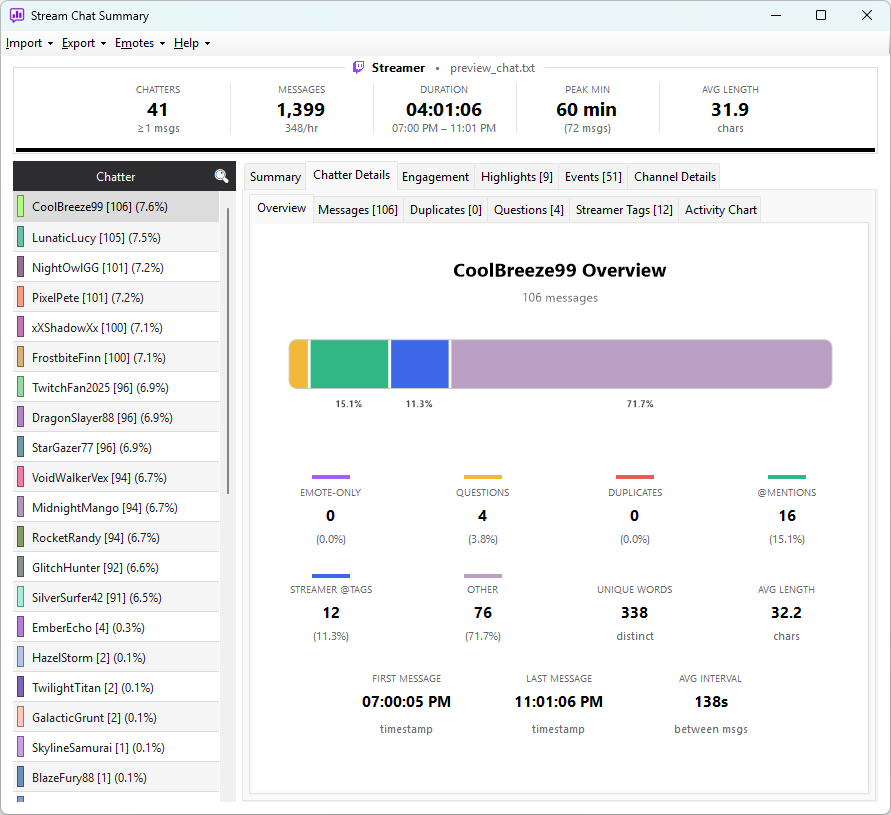
The Chatter Details tab on the left half of the main window is where you dig into individual chatters — what they said, how often, what patterns they fall into, and how engaged they were over the course of the stream.
Selecting chatters
Click any row in the Summary chatter list, then switch to the Chatter Details tab. You can also Ctrl-click or Shift-click to compare multiple chatters at once — every panel updates to reflect the combined selection.
The sub-tabs
Chatter Details is itself a tabbed view with seven sub-tabs.
Overview
Per-chatter stats (or aggregate, for a multi-selection):
- Message count
- Duplicates — count and percentage flagged as duplicates
- Questions — count and percentage containing
? - Mentions — count and percentage tagging anyone
- Emote-only — count and percentage of emote-only messages
- Commands — count and percentage starting with
! - Average message length — characters per message
Below the numbers is a horizontal bar showing the breakdown visually — each category as a coloured segment of the chatter's total output.
When a single chatter is selected, a coloured pill in the top-right corner shows their engagement tier — Core, Engaged, Casual, or Drive-By — tinted in that tier's colour. The pill is hidden when multiple chatters are selected, since a tier only applies to one chatter at a time.
Messages
Every message from the selected chatter or chatters:
| Column | Notes |
|---|---|
| Username | Hidden when only one chatter is selected |
| Timestamp | Wall-clock time |
| VOD Time | Seconds-since-stream-start (VOD imports only) |
| Message | With emotes rendered inline |
Duplicates
Just the messages flagged as duplicates, with a Score column showing how strong the similarity is.
Questions
Messages containing a ?, sorted chronologically.
Streamer Tags
Messages tagging the streamer with @streamer_name.
Activity Chart
A timeline showing when, during the stream, the selected chatter was active. For one chatter, you can spot whether they were lurking early and active late, or constant throughout. For a multi-selection, it's a combined activity profile.
Working with groups
For aggregate views of your community, filter the Summary tab to a single tier (e.g. Core), select them all, then switch to Chatter Details — every sub-tab now shows the aggregate behaviour of that group as a single block. Useful for understanding what your loyal viewers, your drive-by traffic, or any middle slice of the audience actually look like.
Wherever messages appear (Messages, Duplicates, Questions, Streamer Tags), emotes render inline as small images — provided the relevant emote source is loaded in the Emote Manager. Hovering a cell with emotes shows a tooltip listing the emote codes.