Importing a log file (Chatterino)
The Chatterino format is the most flexible importer. It reads any
plain-text chat log with one message per line — that includes
Chatterino's own logs and the .txt files
that Stream Chat Summary writes from
live capture sessions.
How to import
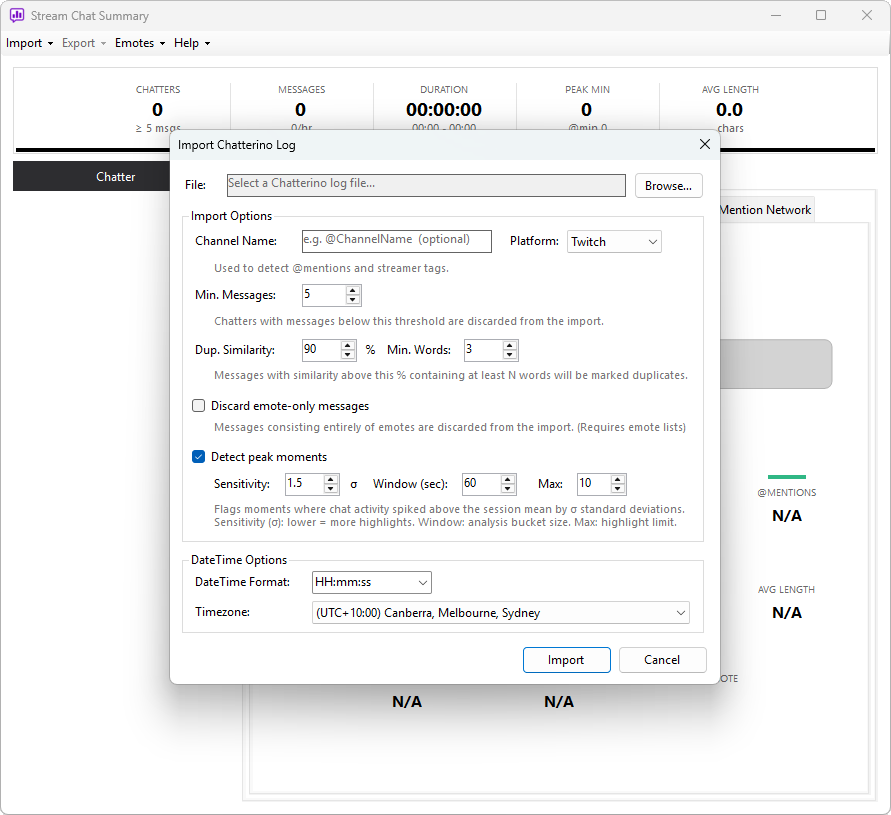
- Click Import → Log File (Chatterino)
- Browse to a
.logor.txtfile - Fill in the Channel name (optional — enables channel-specific emote matching and Streamer Tag detection). The field remembers channels you've imported before: open the drop-down to pick a previous one, or type a new name. Click the ✕ beside a remembered name to drop it from the list.
- Pick the Platform — Twitch or Kick
- Adjust the timestamp format if the file uses a custom one (see below)
- Click Import
Expected format
A typical line looks like:
[14:32:18] streamer_user: thanks for the raid!
[14:32:21] viewer123: LETS GO
[14:32:24] [raid] Raid from another_channel with 47 viewers
Messages have username: text after the timestamp. Event lines have
no colon and are imported as channel events rather than messages —
see Supported events for which event types
are recognised.
Worth knowing: Chatterino-format files are the only import type that carries events. Twitch VOD and CSV imports always have an empty Events tab because those sources don't include event data. So if you want to re-analyse a stream with full event context, this is the format to use — provided the file was written with the bracketed type tags that this app's live capture produces.
Chatterino-style log files don't include username colours. When the app imports them, it generates a stable colour for each chatter from the lowercased username — same name, same colour, every time, and across all charts and grids. Generated colours sit in a legible range so usernames stay readable on white backgrounds.
Timestamp formats
Chatterino itself can be configured to write timestamps in many forms. The importer recognises the common ones out of the box:
[HH:MM:SS](24-hour)[h:mm:ss tt](12-hour with AM/PM)[HH:MM:SS.fff](with milliseconds)
If your log uses something else, pick Custom from the timestamp
dropdown and type the format yourself — e.g. HH:mm:ss for 24-hour
time, where HH is hours, mm is minutes, and ss is seconds.
You can also set the Time zone the log was written in. This matters if the file came from a machine in a different region and you want the displayed times to match the broadcast clock.
Analysis options
This dialog shares the same duplicate, emote, and highlight controls as every other importer. See Import analysis options for the full explanation of each setting.