Troubleshooting
If something doesn't work, the app's error dialogs are designed to make it easy to figure out why — and easy to share what went wrong if you need to report a bug.
The error dialog
When an import, export, or connection fails, you'll see a red error dialog with:
- A short, human-readable error message
- A Show technical details toggle that expands the full exception chain
- Copy Details — copies the message and technical details to the clipboard, ready to share with support
- Open Log Folder — jumps to the error logs folder in Explorer
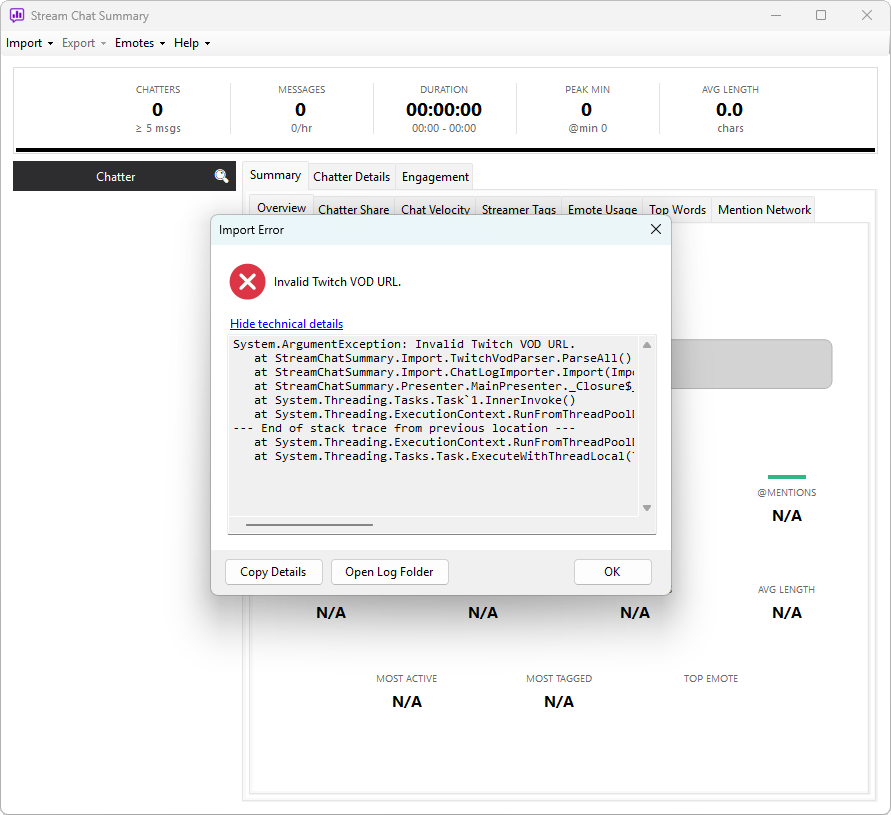
For most issues, the message alone tells you what to fix (wrong URL, network offline, malformed log file). For anything else, copy the details and check the log.
Common issues
"VOD chat replay is unavailable"
Twitch removes chat replay from older VODs and from sub-only or mature sections. There's nothing the app can do — the data isn't there. If you're the streamer, save chat live with Live Stream Monitor instead.
Emotes are showing as text in messages
Your emote cache is stale, or — much more commonly — the channel-specific source for that streamer isn't loaded. Channel emotes are not added automatically. Open Emotes → Emote Manager and either:
- Click Add Source to add a BTTV / 7TV / FFZ list for that channel, or
- Click Refresh All if you've added the source previously but its codes are out of date
See How emotes work for the full model.
Live capture won't connect
A few things to check:
- The channel name is correct (just the username or handle, not a full URL)
- The Platform dropdown matches the channel — picking the wrong one will fail silently
- Your network isn't blocking IRC (Twitch, port 6697) or WebSockets (Kick, port 443)
- For Kick: Cloudflare's bot protection occasionally rejects automated clients; try again after a minute
- For YouTube: the channel must be actively live — scheduled or completed streams don't expose a live chat ID. YouTube handles can include or omit the
@prefix - The channel is currently live — you can only capture an active broadcast
The app retries up to 5 times with exponential backoff (capped at 60 seconds between attempts) when a session drops. If it can't connect at all, double-check the channel is broadcasting right now.
YouTube live capture stopped with a quota error
The YouTube Data API has daily usage quotas. If you see a "YouTube API quota exceeded" error, the app hit the per-project limit. Quota resets daily (midnight Pacific time) — wait for the reset and try again. This only affects YouTube live monitoring; Twitch, Kick, and file imports are unaffected.
CSV import shows weird timestamps
The CSV importer expects offset seconds in column 1. If your CSV came from a different tool that uses wall-clock timestamps, convert it first or use the Log File importer with a custom timestamp format.
Import is very slow
For very long VODs (10+ hours) with active chat, the download itself can take several minutes — that's normal. If a much shorter import is slow:
- Turn off duplicate detection in the import dialog as a quick test
- Turn off highlight detection too if the log is huge
- Check the error log for repeated retries indicating a flaky network
Channel Details tab is missing
Channel details are fetched once at import time. If you were offline or the platform's API was unreachable, the tab won't appear. Reimport when you're back online.
For Log File and CSV imports, channel details only fetch if you filled in the Streamer name field.
Reporting a bug
If you hit a real bug, the best report includes:
- What you were doing — which import source, which menu, which file
- What you expected vs what happened
- The output of Copy Details from the error dialog (if one appeared)
- A line or two from the error log (Help → Error Logs Folder, today's file)
Contact details are on the Help → About screen inside the app.
When in doubt: restart
Closing and reopening the app clears any temporary state without losing your emote cache or saved live logs. If something feels off and the error log doesn't show anything obvious, a clean restart is harmless and often fixes it.