Importing a Twitch VOD
The Twitch VOD importer pulls chat directly from a past broadcast using Twitch's official chat replay API. You don't need to be signed in — any public VOD works.
How to import
- Click Import → Twitch VOD (Twitch URL)
- Paste the VOD URL (e.g.
https://www.twitch.tv/videos/1234567890) - The Streamer name auto-fills from the VOD
- Adjust the analysis options if you want (see below)
- Click Import
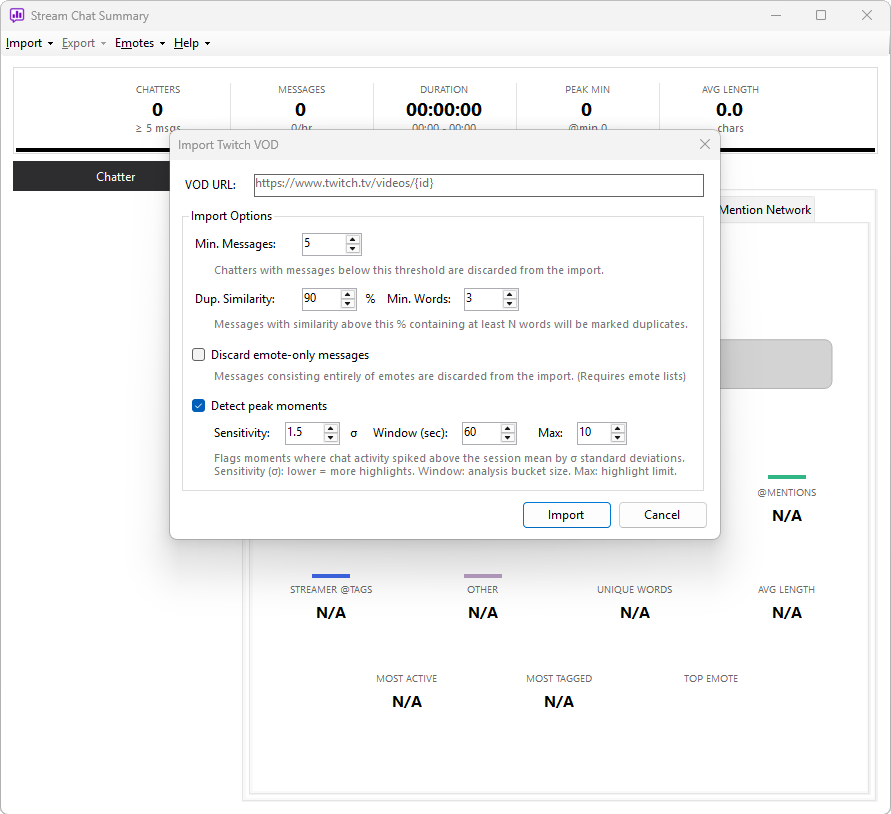
The streamer name is detected automatically from the VOD. If you've already added that channel's BTTV / 7TV / FFZ sources via the Emote Manager, their custom emotes will be recognised in the imported chat. Channel-specific sources are not fetched automatically — see How emotes work for the full picture.
Expected format
A standard Twitch VOD URL — for example:
https://www.twitch.tv/videos/1234567890
The importer pulls every chat message sent during the broadcast, along with each message's VOD offset (seconds since stream start). Messages are downloaded in pages until the entire chat is retrieved. A busy four-hour stream typically imports in under a minute; a 12-hour subathon with heavy chat can take several minutes. The progress bar at the top of the window shows pages downloading in real time so you know it hasn't stalled.
Twitch's chat replay only exposes messages — there's no record of subs, raids, bits, mod actions, or channel point redeems for past broadcasts, so the Events tab stays hidden for VOD imports. Use live capture while the stream is live if you need events recorded.
Twitch removes chat replay from some older VODs and from sub-only sections. If a VOD's chat replay is unavailable, the import will fail with an error message — there's nothing the app can do, the data simply isn't there.
Reimporting
If you tweak emote sources or change an analysis setting and want to re-run the same import without retyping the URL, use Import → Reimport. It fetches the same VOD again with whatever options are currently set.
Analysis options
This dialog shares the same duplicate, emote, and highlight controls as every other importer. See Import analysis options for the full explanation of each setting.