Live capture & the live logger
Live capture connects to a channel that's broadcasting right now and records every message as it arrives. When the session ends, you have a complete chat log on disk you can re-analyse later, share, or archive.
In effect the app doubles as a chat logger: leave a session running on a channel you care about and you get a self-contained, re-importable file in the same Chatterino-style format the app reads back natively.
How to import
- Click Import → Live Stream Monitor
- Pick the Platform — Twitch, Kick, or YouTube
- Enter the channel name and click Connect
- Twitch / Kick: enter the channel name (e.g.
xqc) - YouTube: enter the channel handle with or without
@(e.g.MrBeastor@MrBeast)
- Twitch / Kick: enter the channel name (e.g.
- Click Connect
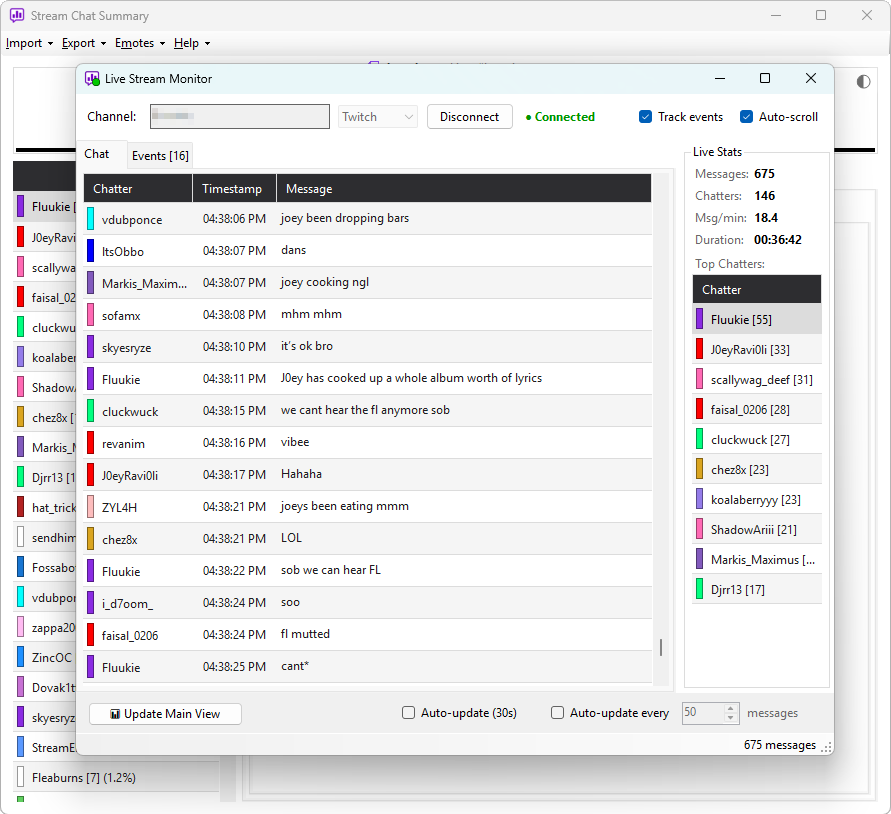
The monitor opens and starts receiving messages immediately. No login or account is required — all platforms allow read-only chat connections without signing in.
Expected format
Live capture doesn't read a file — it produces one. Sessions are automatically saved to:
%LocalAppData%\Stream Chat Summary\live_logs\
One file per session, named after the session date, the platform, and the channel:
YYYY-MM-DD_{platform}_{channel}.txt
For example: 2024-01-15_twitch_streamer_user.txt. You can open
this folder quickly via Help → Live Logs Folder.
A typical fragment of the file:
[19:30:12] streamer_user: stream's live!
[19:30:18] viewer123: PogU
[19:30:24] [raid] Raid from another_channel with 47 viewers
[19:32:08] new_sub_user: hi everyone first time here
[19:32:08] [sub] new_sub_user subscribed at Tier 1
The format is the same one Chatterino uses, with one extra convention: channel events (subs, raids, gifts, mod actions, announcements) are written as bracketed lines with a type tag. That tag is what lets the Events tab repopulate correctly when the log is re-imported later.
Unlike VOD imports — which lose events because Twitch's chat replay doesn't carry them — a live-logged file preserves every event the app captured live, with its original type and timestamp. Reimport the file and the Events tab fills in exactly as it did during capture.
What the monitor window shows
- Messages grid — every message as it arrives, newest scrolling in at the bottom (the grid keeps the most recent 5,000 messages on screen; older rows scroll out of view)
- Stats panel — live counters that refresh every few seconds: total messages, total events, unique chatters, current rate (messages/minute), and session duration
- Top chatters — the most active users in the session so far
- Events — subs, raids, follows, and other channel events (the grid keeps the most recent 2,000 events on screen)
You can leave the window running in the background. The app adds a tray icon while a session is active: green for live, grey for idle. Right-click the tray icon for:
- Show Monitor — bring the monitor window back to the front
- Disconnect & Close — end the session immediately
Double-clicking the tray icon is a shortcut for Show Monitor.
Closing the monitor window itself while a session is active hides it to the tray rather than ending the session — use Disconnect & Close to actually end it. Closing the main app window while a session is active asks you to confirm first, since that disconnects the live monitor too (and so does restarting the app to apply a theme change).
Conversation view
Click any username in the messages grid to open a conversation thread for that chatter in a separate window.
The thread shows every message the chatter sent alongside every message that @mentioned them. Messages that only mention other people are left out, so the thread stays focused on the selected chatter. The most recent 200 thread messages are kept on screen; once older ones scroll off the top, the count reads "200 of N messages".
The conversation window stays open as new messages arrive and updates live, with emotes and emoji rendered inline just as in the main message grid. Clicking the same username again brings the window to the front; clicking a different username switches to that chatter's thread.
Thread membership is based entirely on @mention detection in message text. When a viewer uses Twitch's or Kick's native reply feature, the app reads the reply's parent author and adds an @parent mention to the reply text, so replies are captured even when the sender didn't type the @. YouTube users type @mentions manually. All three produce the same result in the conversation view.
See Conversation view for the full details.
Acknowledging events
Tick Track events in the monitor header to turn on the acknowledgement column. The preference is saved, so you only need to enable it once — it will be on the next time you open the monitor.
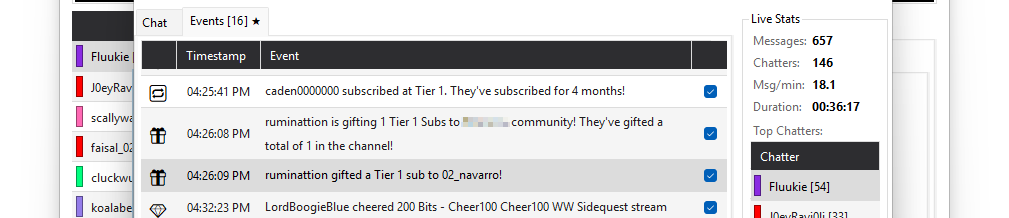
The events grid then shows a checkbox column on rows that are worth thanking the user for — so you can tick each one off as you cover them on stream and tell at a glance which events you still owe a shout-out to.
A checkbox appears for:
- Subscriptions — new subs, resubs, gift subs, anon gift subs, and sub mystery gifts
- Bits
- Raids and community pay-forwards
- Channel point redeems
- Shoutouts received
Moderation actions (timeouts, bans, unbans), system notices, and any event whose type couldn't be classified show a muted "—" instead of a checkbox.
When someone gifts a batch of subs (e.g. "10 Tier 1 Subs to the community"), only the summary row at the top of the batch gets a checkbox — the per-recipient rows beneath it show "—". Tick the summary row once and the whole batch is covered. Single gift subs sent to a named user are unaffected and still get their own checkbox.
Click the column header to tick all acknowledgeable events at once — or untick them all if every one is already checked. Useful at the end of a busy stretch when you want to mark everything as covered in one go.
The Events tab caption shows the number of outstanding (un-thanked)
events with a star (Events [N] ★) whenever at least one acknowledgeable
event is still unticked, so you can see at a glance how many you still
owe — even when the Chat tab is in front. Ticking the last outstanding
event clears it back to just Events; unticking one brings the count
back. (The running total of all events is shown in the stats panel, not
the tab.)
Acknowledgements live in memory on the monitor window — they reset when the monitor is closed and do not carry across to the main window's Events tab when live data is fed for analysis. They're intended as a live aid during a session, not a permanent record.
Auto-refreshing the main view
The monitor can periodically push its current state back into the main window's analysis. This lets you watch highlights, engagement tiers, and charts update as the stream progresses.
Toggle this in the monitor window — by default it refreshes every 30 seconds or after a certain number of new messages. For long streams, slow the cadence to 60 seconds or so; each refresh re-runs the full analysis, which is cheap for short captures but adds up over a 12-hour subathon.
All platforms supported
| Platform | Connection | Coverage |
|---|---|---|
| Twitch | Anonymous IRC (irc.chat.twitch.tv) | Full event support — subs, raids, gifts, mod actions, channel point redeems, bits. Inline emotes are auto-discovered from each message payload |
| Kick | Pusher WebSocket | Subs, hosts, gifts, Kicks gifts (Kick's bits equivalent), mod actions, announcements (no channel points). Inline emotes are auto-discovered from the message payload |
| YouTube | YouTube Data API v3 polling | Super Chats & Super Stickers, new members, membership milestones, gifted memberships (no inline emotes — YouTube's live chat API does not expose emote tokens in message text) |
The channel must be actively live when you connect — YouTube's API only returns an activeLiveChatId for streams that are currently broadcasting. There is no fallback to scheduled or completed streams.
See Supported events for the complete list.
If your connection drops mid-session, the monitor automatically tries to reconnect using exponential backoff — up to 5 attempts, with the delay growing to a maximum of 60 seconds between tries. If all five fail, the session ends and you'll need to reconnect by hand. Any messages sent during the dropout are lost — they can't be re-fetched retroactively. For critical captures, run on a wired connection.
Re-importing a saved session
To analyse a saved log later:
- Click Import → Log File (Chatterino)
- Browse to
%LocalAppData%\Stream Chat Summary\live_logs\(or use Help → Live Logs Folder) - Pick the file for the session you want
- Fill in the Streamer name (it's part of the filename, so easy to copy)
- Click Import
The result is identical to the analysis you'd have seen if you'd kept the live session open — except now you can rerun with different analysis settings, compare against another stream, or pass the log to someone else for their own analysis.
Common use cases
Capture once, analyse later
Start a capture before the stream goes live, walk away. When you come back, the log is on disk waiting for you to import with whatever analysis settings make sense.
Always-on archive
For your own channel, leaving a capture running on every broadcast gives you a complete chat history that survives Twitch's VOD retention limits — even after Twitch deletes your VOD, you still have a clean text record.
Compare two streams
Capture two different streams (your channel, a competitor, a guest
appearance) and reimport each. With both as separate .txt files
you can switch between them to compare engagement tiers, peak
moments, and chatter overlap.
Hand off to an editor
The text file is small (typically tens to a few hundred KB even for multi-hour streams), so it's easy to share via Discord or email. The recipient can import it and explore the same analysis you saw.
Long-running considerations
The live logger is happy to run for as long as your session does — 12-hour subathons and multi-day marathons work fine. A few things worth knowing for extended captures:
- One file per session. Closing and reopening the monitor starts a new file. If you keep the same session open from end to end, you get a single continuous log.
- Disk usage is modest. Even a busy 12-hour stream typically produces a log under 10 MB. Hundreds of captures will fit comfortably in
live_logs/. - Reconnects don't fragment. When the monitor drops and reconnects, the same file keeps being appended to. You don't end up with one file per network blip.
- The on-screen grids are capped, the log is not. To stay responsive over long sessions, the window keeps only the most recent 5,000 messages and 2,000 events visible — but every message and event is still written to the log file and counted in the stats, and the full session is sent to the main window when you update the analysis view.
The app never deletes anything from live_logs/ on your behalf.
Manage disk space by removing or archiving old captures yourself —
see Where files live for the
full layout.
Editing logs by hand
Because the format is plain text, you can hand-edit a .log file —
remove a stretch you don't want analysed, fix a misclassified line,
or stitch two captures together. Save the result and reimport.
The Supported events page lists every event type's tag if you want to add or modify event lines manually.
Analysis options
The Live Stream Monitor doesn't expose an analysis options panel. The auto-refresh pipeline uses a fixed configuration so you can focus on the live view:
| Option | Live capture value |
|---|---|
| Minimum messages | 1 (every chatter included) |
| Duplicate similarity | 90% |
| Duplicate minimum words | 3 |
| Discard emote-only messages | off |
| Highlight detection | off during live refresh |
To re-run a captured session with the full controls — different sensitivity, stricter duplicate matching, emote-only filtering — reimport the saved log via Import → Log File (Chatterino) as covered above. That dialog shares the same duplicate, emote, and highlight controls as every other importer; see Import analysis options for the full explanation of each setting.